Before You Paste Into AI: A Sensitive-Data Checklist for Prompts, Files, and Screenshots
About to paste a log, email, PDF or screenshot into ChatGPT, Claude or Gemini? Run this 60-second checklist first — and keep AI useful without oversharing.
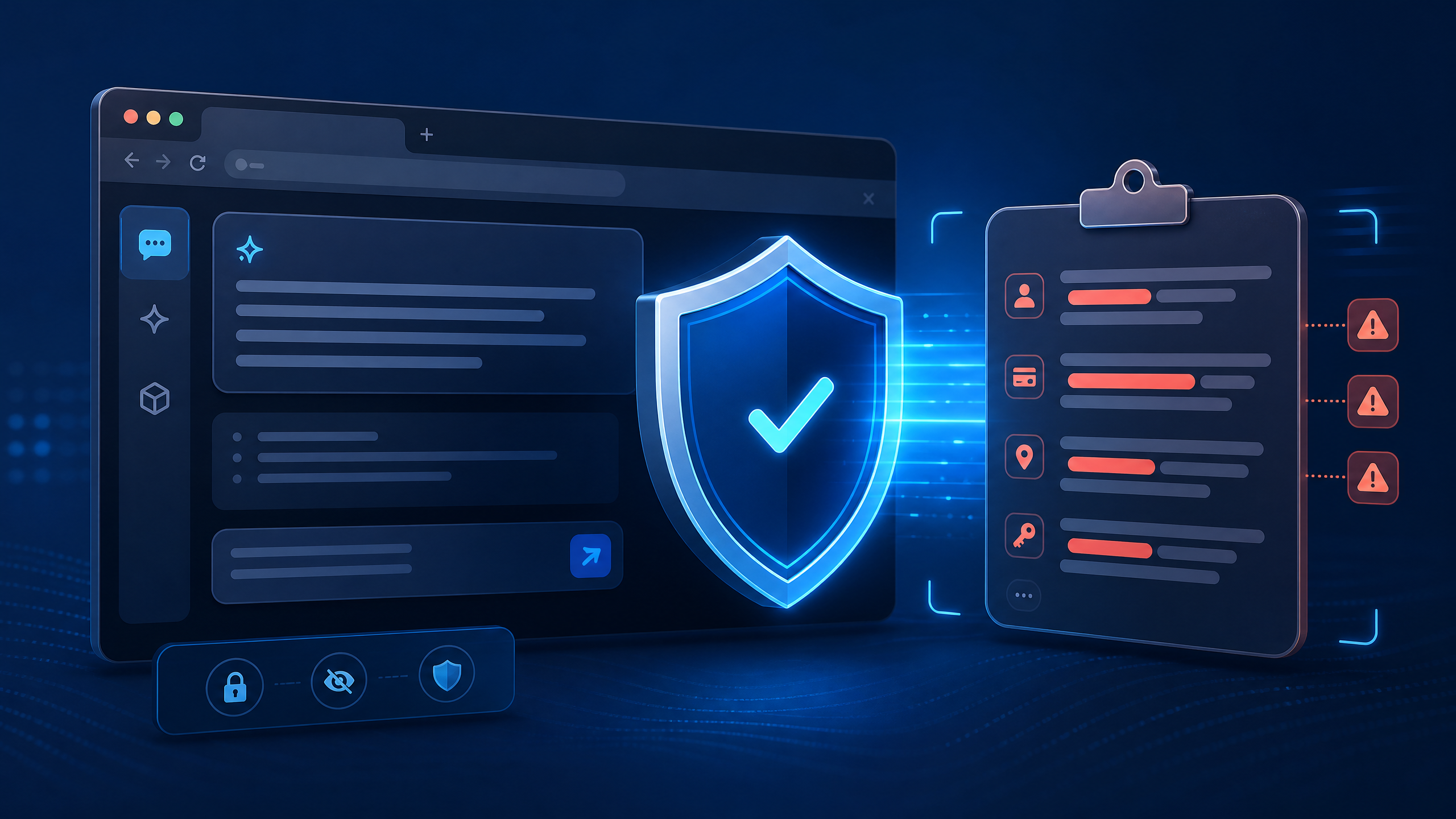
It takes less than a second to paste something into ChatGPT.
Getting it back? That part doesn't come with a button.
Scroll through any developer community for ten minutes and you'll find the same confession on repeat: "I almost pasted my API key into Claude today." Sometimes it's a key. Sometimes it's a client's name buried in a support ticket, a database connection string riding along in an error log, or a PDF with a confidential appendix nobody remembered was attached.
Nobody in those stories is reckless. They were trying to solve a real problem quickly — debug something in production, summarize a document before a meeting, draft a reply under deadline. The fastest way to get a good answer from AI is to give it the real thing. That's exactly where the problem lives.
This is your 60-second checklist. No fear-mongering, no compliance jargon. Just the habit that lets you keep the productivity without handing over more than you meant to.
Why careful people still overshare
AI chat interfaces feel private. There's a blinking cursor, a friendly tone, no other humans visibly in the room. Privacy researchers have noted that conversational interfaces lower people's guard around personal information in a way that forms and emails simply don't.
Add time pressure — a bug in production, a client waiting — and the review step disappears. You copy the whole log instead of the relevant lines. You upload the entire PDF instead of the one page that matters. You screenshot the full screen when only the error message was needed.
The fix isn't to stop using AI. It's to build one small pause into the moment between copy and send.
The one rule worth remembering
Give AI what it needs. Not everything you have.
This is data minimization — the same principle privacy regulators and security teams apply to public AI tools. Don't send personal or sensitive information unless there's a genuine need, and remove what isn't needed first.
Notice what this rule does not say. It doesn't say "never paste code." It doesn't say "AI is dangerous." It says the model usually needs far less context than you're about to give it — and the extra context is where the risk lives.
What actually counts as "sensitive"?
Most people think of passwords and stop there. Four categories show up in real pastes and uploads all the time:
- Secrets — API keys, access tokens, passwords, private keys, session cookies, database connection strings,
.envvalues - Personal data — names, emails, phone numbers, addresses, ID numbers, customer or patient details
- Company data — internal URLs, hostnames, project codenames, unreleased financials, client names, contract terms, support ticket contents
- The invisible layer — file metadata, tracked changes and comments in documents, hidden spreadsheet tabs, appendices, and anything visible in the background of a screenshot
The first three get all the attention. The fourth is where careful people get caught.
The 60-second pre-paste checklist
Run this until it's automatic. It genuinely takes about a minute.
Scan for secrets first
Hunt for anything that looks like a key, token, or password — long random strings, sk-..., AKIA..., -----BEGIN PRIVATE KEY-----, password=, postgres://user:pass@host. These are highest-risk: they can be acted on immediately by anyone who finds them.
Strip names and contact details
Client names, colleague emails, customer phone numbers. Ask yourself: does the AI actually need the real identity to answer my question? It almost never does.
Remove internal identifiers
Hostnames, IP addresses, file paths, ticket IDs, project codenames. These reveal more about your systems than most people realise. Swap them for placeholders.
Replace — don't just delete
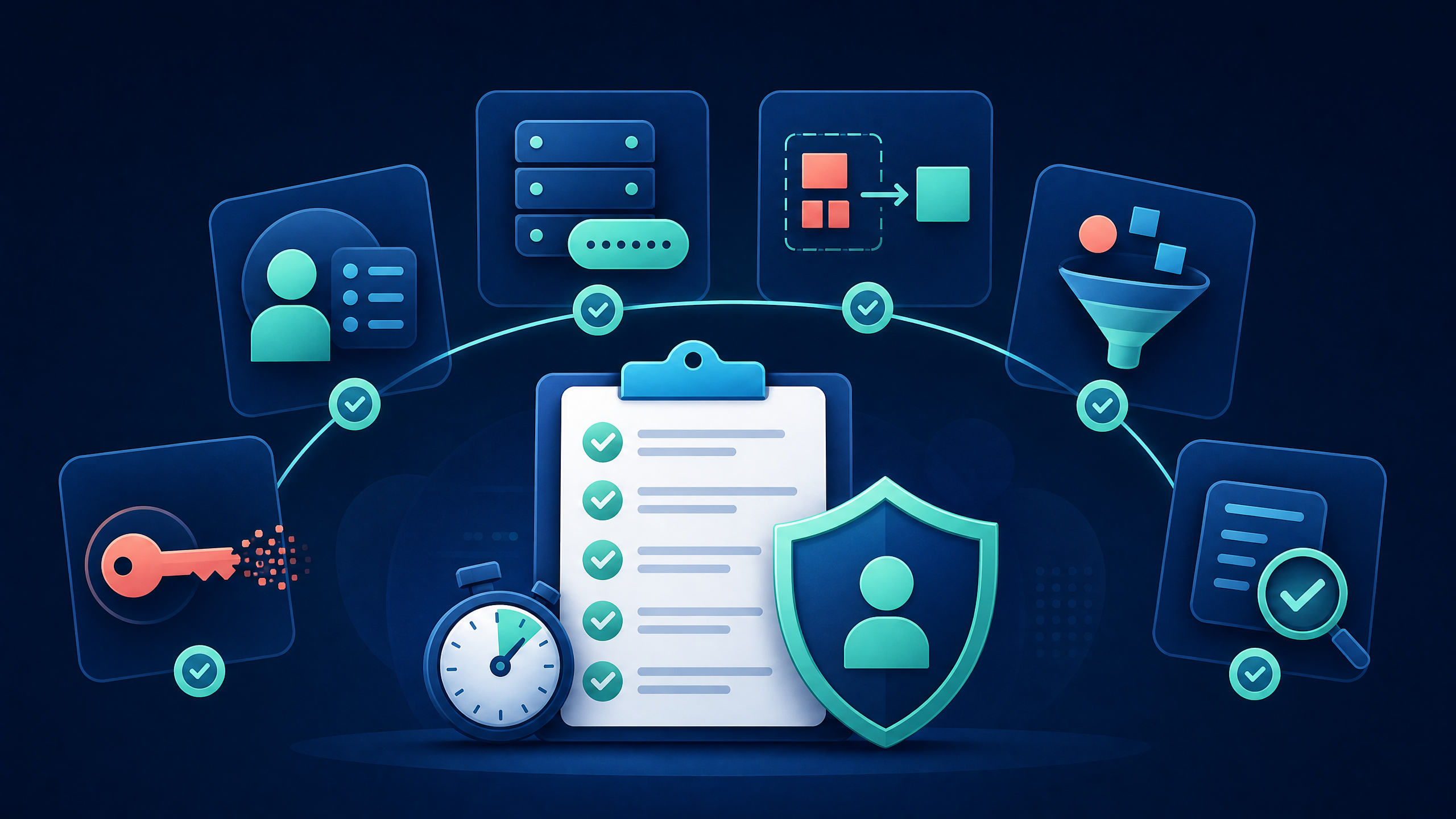
This is the move that keeps your output useful. Instead of removing sensitive values entirely, substitute consistent placeholders. The AI sees the structure, the error, and the full context. The secrets are gone.
Ask the golden question
"What is the minimum context this AI needs to give me a good answer?" Then paste that — not the whole file, not the whole thread, not the whole log.
Final read of what you're actually sending
Not what you meant to copy. What is on the clipboard right now.
Replace sensitive values with consistent placeholders
BEFORE (risky):
Connection failed: postgres://admin:Sup3rSecret@db.internal.acme.com:5432/orders
User john.smith@acme.com timed out after 30s

AFTER (safe — AI still gets everything it needs):
Connection failed: postgres://[USER]:[PASSWORD]@[INTERNAL-HOST]:5432/[DATABASE]
User [EMAIL] timed out after 30s
If you work with error logs specifically, we've written a full walkthrough with a dirty-log vs. safe-log example: Is It Safe to Paste Error Logs Into ChatGPT?. For code and config files: How to Remove API Keys and Tokens Before Asking AI for Help.
Before you upload a file or PDF
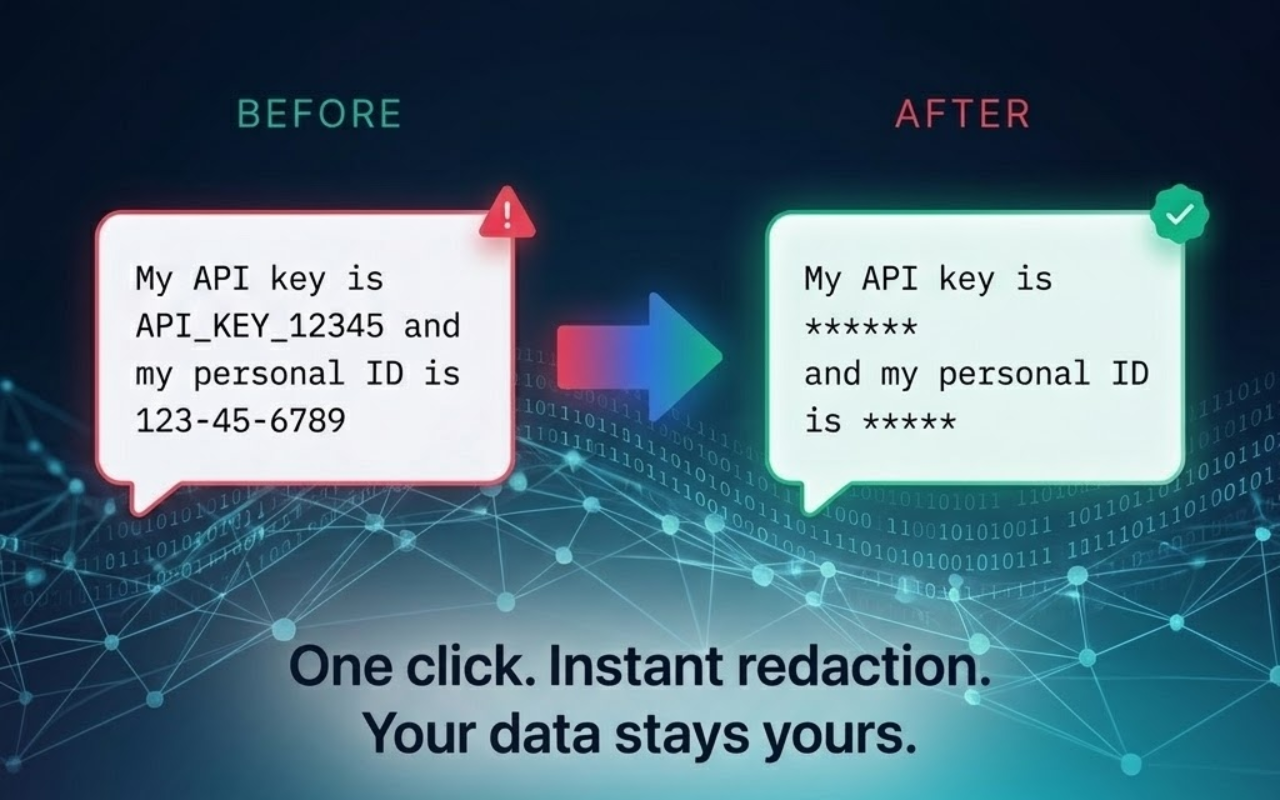
Files feel safer than prompts because you never watch the contents scroll by. That's precisely what makes them risky. Before uploading any document:
- Check beyond the page you care about. Appendices, cover sheets, signature pages, and attachment lists routinely carry names, pricing, and account details nobody thought about.
- Open the comments and tracked-changes panel. A "final" contract can contain an entire negotiation history in the margins.
- Check hidden sheets and metadata. Spreadsheets hide tabs. PDFs and Office files carry author names, edit history, and sometimes full server paths in their metadata.
- Extract only what you need. Pasting three relevant paragraphs is almost always better than uploading forty pages.
More on this: Can I Upload a PDF to ChatGPT? A Pre-Upload Privacy Checklist.
Before you share a screenshot
A screenshot is never "just a screenshot." Before sending one to AI, look at the full frame:
- Browser tabs and the bookmarks bar — they name your tools, clients, and internal systems
- Notification previews in the corner — these often contain message text or sender names
- Email addresses and colleague names anywhere in frame
- The URL in the address bar — internal routes can reveal a lot about your infrastructure
- Whatever app is open behind the one you meant to capture
Crop aggressively. Blur or redact what's left. AI models read text in images remarkably well — including text you stopped noticing. Treat a screenshot as carefully as you'd treat a pasted document.
More: That Screenshot Is Not Just a Screenshot: How to Check Images Before Sharing With AI.
"But I use Temporary Chat / a paid plan / I opted out of training"
Good. Keep doing that.
Provider privacy settings matter, and every major provider documents its own data controls, retention policies, and incognito-style chat modes. Configure them on whatever plan you use.
But understand the boundary they draw. A provider setting governs what happens on their side — retention, history, whether your chats may improve future models. It does not decide what you choose to send in the first place.
If you paste a live API key into a temporary chat, you still transmitted a live API key. Think of temporary chat as clearing the receipt — not changing what you bought. Minimizing what you share and configuring your settings are complementary layers, not alternatives. We break this down provider-by-provider in ChatGPT Data Controls vs. Data Minimization.
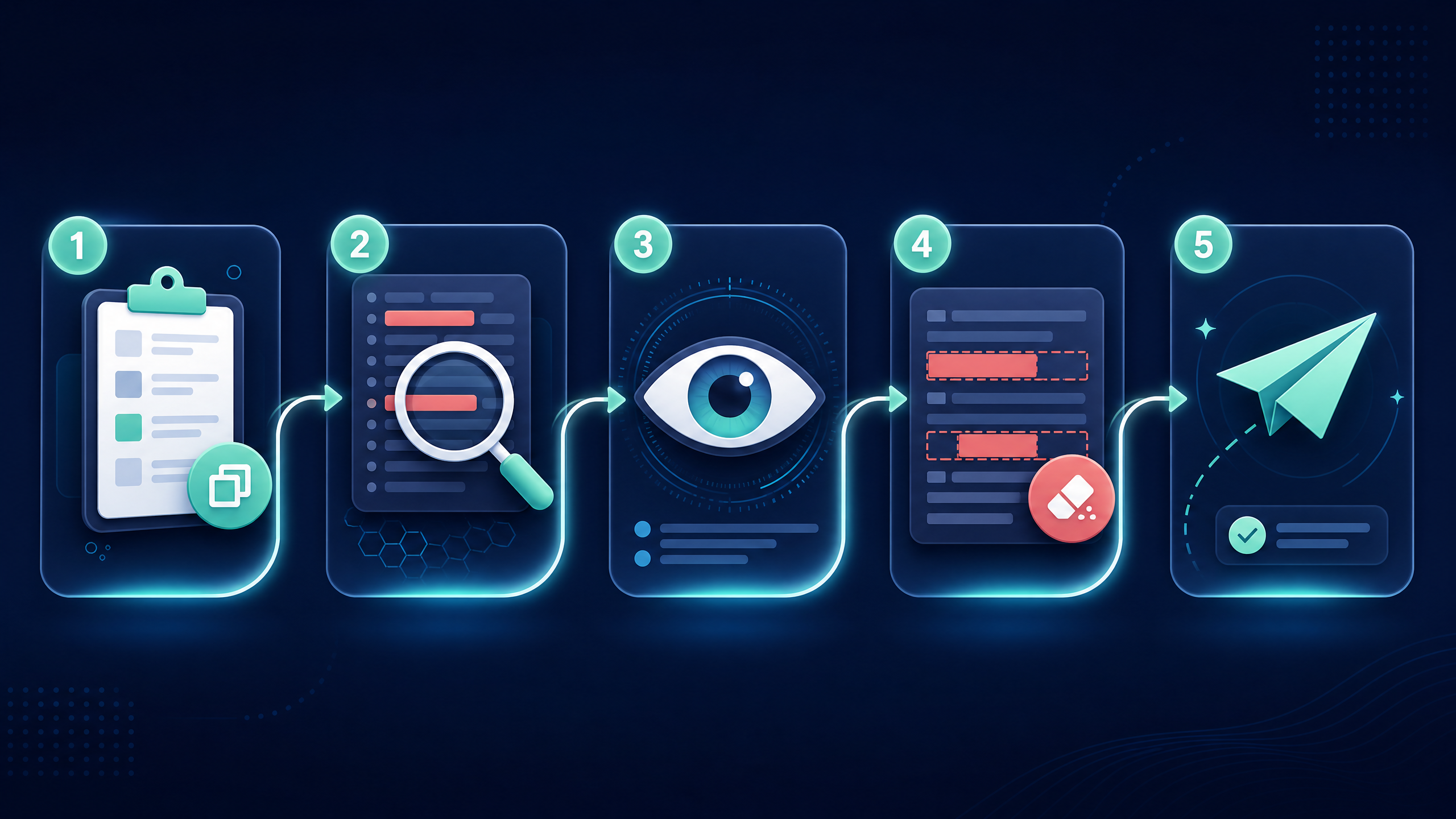
Turn it into a habit: Copy → Detect → Review → Remove → Send
Checklists only work if they survive a busy Tuesday. The version that sticks is five steps:
- Copy the content you need help with.
- Detect — scan it for secrets, personal data, and internal identifiers.
- Review what was flagged. Is it actually sensitive? Is it actually needed?
- Remove or replace with placeholders.
- Send the minimized version.
Do this for a week and it stops feeling like a process. It becomes the way you use AI. Deeper guide: Build a Safer AI Prompt Workflow.
Where a checking tool helps — and where it doesn't
Manual review works. Until you're tired, rushed, or pasting something 300 lines long. That's when a connection string on line 247 slips through. It happens to careful people because it's human error, and human error has bad timing.
This is the gap a pre-send checker fills.
Full disclosure: we build one. [LoricaPrompt](https://browsercraftstudio.com/extensions/lorica-prompt) is a Chrome extension that checks your clipboard — and files before upload — for API keys, tokens, private keys, passwords, and personal data, and warns you before the content reaches the AI tool. The entire scan runs locally inside your browser. Your content never touches our servers.
Two honest caveats: it won't catch every conceivable sensitive item (no pattern-based tool can — your judgment is still the final layer), and it can't change what your AI provider does with data after you send it. It's a safety net for the moment between "copy" and "send," not a guarantee.
If you're weighing options, we've compared approaches honestly: AI Safety Checkers vs. Enterprise DLP vs. Manual Redaction.
Check your next prompt before you share it
Try LoricaPrompt Free →
Frequently asked questions
Is it safe to paste code into ChatGPT?
It depends on what's in the code. Logic, syntax, and error messages are generally fine. The risk is what rides along: hardcoded credentials, API keys, internal URLs, customer data in test fixtures, and comments mentioning clients or unreleased features. Sanitize those first. Keep secrets in environment variables so they never appear in code you copy.
What if I already pasted something sensitive?
Move fast. If it was a credential — API key, token, password — revoke or rotate it immediately. Treat it as exposed, because it is. Then delete the conversation if the provider allows it, check the provider's data settings, and if it was company or client data, follow your organization's reporting process. Full steps: What to Do If You Accidentally Pasted an API Key Into ChatGPT.
Does Temporary Chat make it safe to share anything?
No. Temporary Chat affects chat history and, depending on provider and plan, data retention. It doesn't make the content you send necessary or appropriate to share. Think of it as clearing the receipt — not changing what you bought.
Can AI tools actually read text in my screenshots?
Yes — surprisingly well. Modern models extract text from images reliably, including tab titles, notification previews, email addresses, and background app content you stopped consciously seeing. Treat a screenshot like a document.
Is a paid AI plan private enough for client or company data?
Paid and business plans often carry stronger data-handling terms. But "better terms" is not the same as "safe to share everything." Your client's confidentiality expectations, your contract, and your company's policy still apply. Minimize and anonymize first — here's how: How to Anonymize Client and Company Data Before Using AI.
The bottom line
You don't have to choose between using AI and protecting sensitive data. You just need one pause between copying and sending.
Scan for secrets. Strip the identifiers. Replace with placeholders. Send only what the AI actually needs.
Give AI what it needs. Not everything you have.
Check before you share
See How LoricaPrompt Works →Last updated: August 2026. AI provider settings and data controls change frequently — always verify details against your provider's current documentation. This article is educational content, not legal or compliance advice.